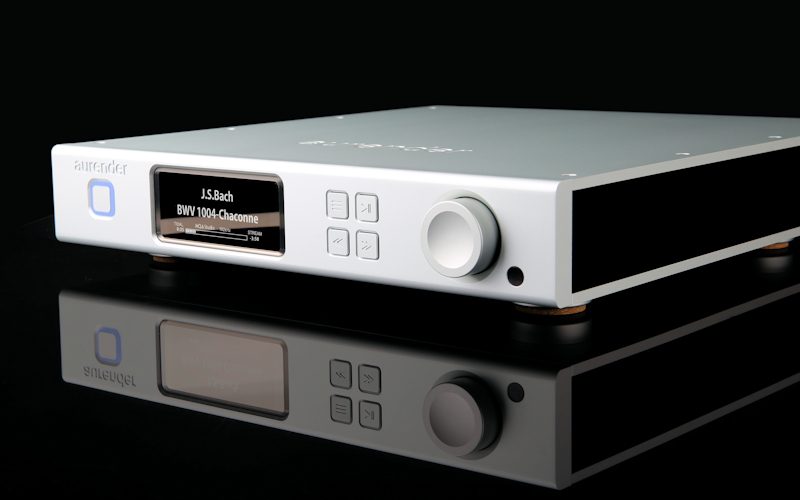
Aurender A100 Music Server Review
March 11, 2020 Comments Off on Aurender A100 Music Server Review
https://hometheaterreview.com/aurender-a100-music-server-reviewed/
“Next, I connected to my Synology NAS (Network Attached Storage) device by going to the “NAS Server” section of the Conductor Settings menu and tapping “Browse NAS Server” to find my NAS device. I selected my NAS from the list of servers found and entered my login credentials. Then I loaded some music files onto the Aurender’s internal hard disk drive by connecting a USB drive to one of the USB data ports on the back of the unit. Once connected, I selected the “Folder” tab from the top row of buttons displayed in the app and then selected “USB.” I then selected the folder I wanted to copy and tapped the “Copy To’ button, tapped the desired target folder on the Aurender, and then hit “Select” to initiate the copy process.
If desired, files can also be copied from a connected NAS device to the A100’s internal HDD by selecting the NAS folder in the Conductor app after logging into the NAS by the steps previously mentioned. According to Aurender, using the internal storage will deliver a better user experience because the system automatically scans internal storage for new content. Using a NAS is fine but a little more cumbersome. All in all, I found the Aurender setup and music file copy process to be straightforward enough that I was up and running in under 30 minutes.”
 Audiophilepure
You must be logged in to post a comment.